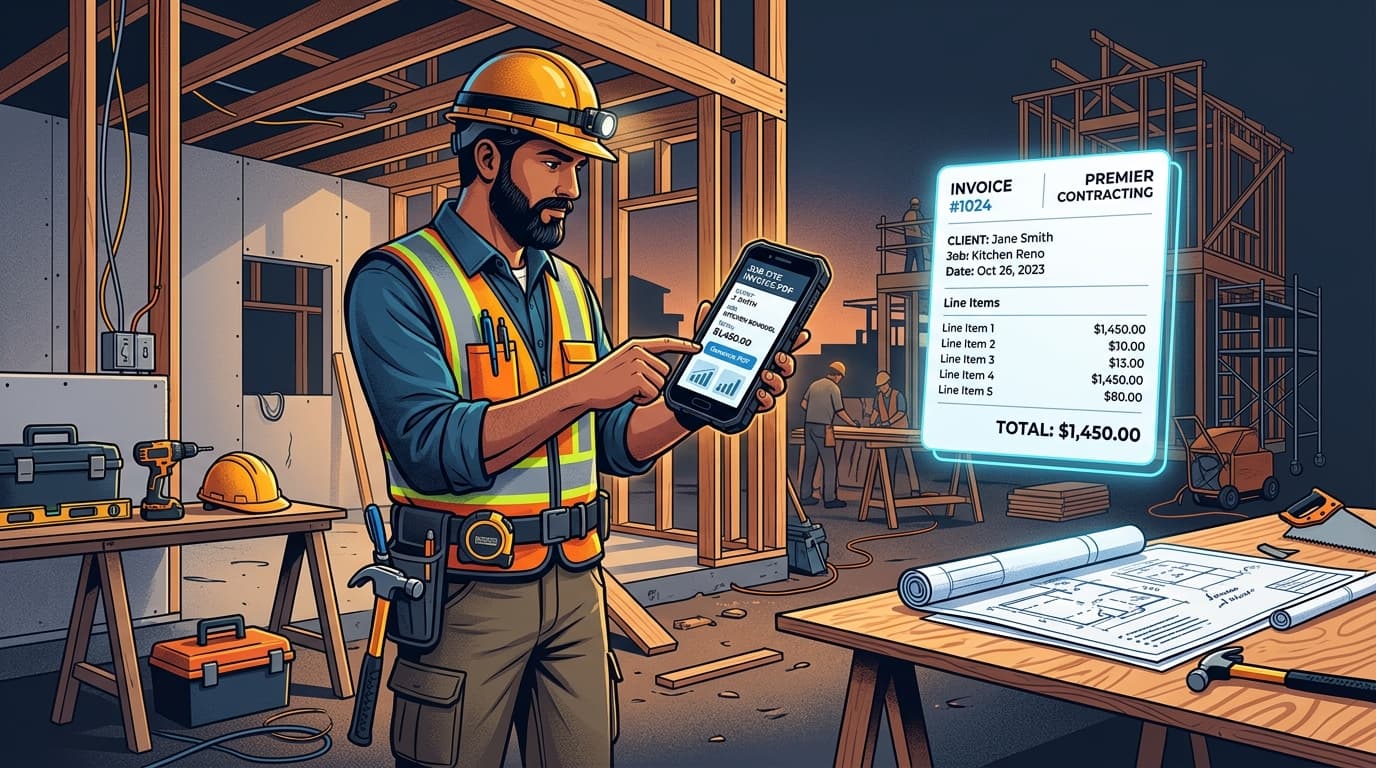
In Silicon Valley software circles, there is an unspoken assumption that every business transaction on earth must be completed via an online credit card checkout button. But step into the real economy—where local contractors, equipment technicians, private tutors, and commercial service providers operate—and millions of businesses still get paid via cash, direct bank deposit, or corporate check.
When an app forces digital payments on a cash-or-bank business, it introduces unnecessary clutter: 'Pay Now' buttons that confuse clients, compliance warnings about unlinked Stripe accounts, and merchant fees. Here is why non-digital billing remains vital and how to manage it cleanly.
Why Traditional and Manual Payment Methods Endure
- Local and Cash Economies: In many neighborhood service businesses (landscaping, residential repairs, personal fitness), clients hand over cash upon completion of service.
- High-Value B2B Wires: Corporate clients frequently disburse payments through automated clearing house (ACH) or direct wire transfers, rendering credit card links obsolete.
- Zero Processing Overhead: Eliminating card transactions protects your profit margins from 3% payment deductions.
- Privacy and Simplicity: Neither you nor your client needs to provide sensitive banking credentials to third-party data aggregators.
How to Track Payments Manually in InvoiceNexora
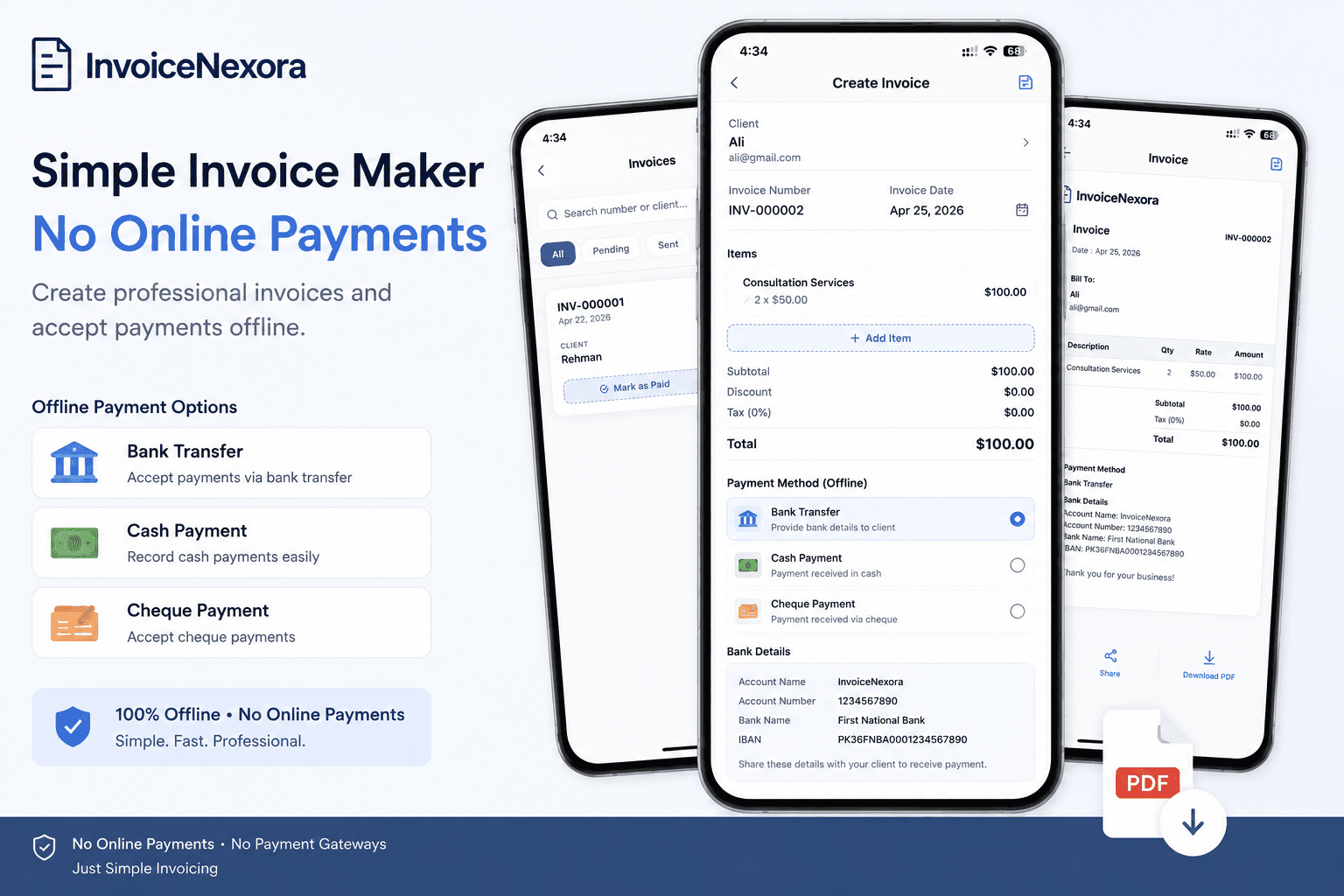
Managing manual payments in InvoiceNexora is intuitive and transparent:
- 01Create and Send: Draft your invoice with complete service line items and your bank, cash, or check instructions in the footer. Export the PDF and dispatch it to your client.
- 02Mark as Sent: The invoice moves into 'Sent' status on your mobile dashboard.
- 03Receive Payment: When your client hands you cash, deposits a check, or sends a bank wire confirmation, open the invoice in InvoiceNexora.
- 04Mark as Paid: Tap 'Mark as Paid' and specify the payment date. The status updates across your monthly revenue dashboard instantly.
- 05Generate Official Receipt: Need to give your client a proof of payment? InvoiceNexora automatically marks the document as 'PAID' for your client's tax records.
Sample Invoice Notes for Cash, Check, and Bank Transfers
Copy and customize these templates in your InvoiceNexora default payment terms:
- For Bank Transfer: 'Payment due within 14 days via Direct Bank Transfer. Bank: Wells Fargo | Account Name: Elite Mechanical Services | Routing: 121000248 | Account: 4567890123.'
- For Check Payments: 'Please make corporate checks payable to: Abubakar Raza Consulting LLC. Mail checks to: 123 Business Way, Suite 400, Chicago, IL 60601.'
- For Cash Upon Service: 'Payment terms: Cash on delivery/completion. Official stamped receipt will be issued immediately upon payment.'
Download the app
Send branded, professional invoices in under a minute.
Mobile-first invoicing for freelancers and small businesses. Templates, clients, multi-currency, and clear payment tracking - all from your phone. This article is only the plan. The app is the shortcut.